
How to download and install APK on Amazon Firestick/Fire TV?
You can use this tutorial to install the apps on Firestick / Fire TV.
We have given complete instructions with images to install this app.
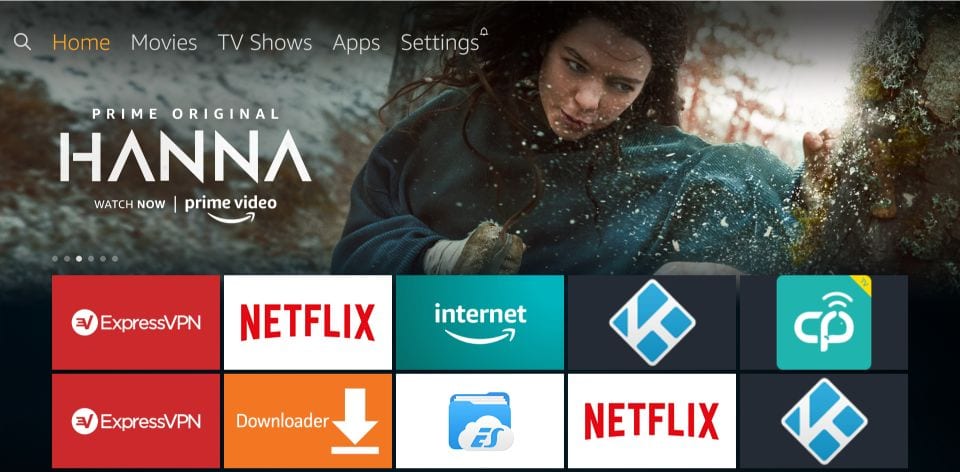
- First of all, go to the Settings from the main menu in Firestick
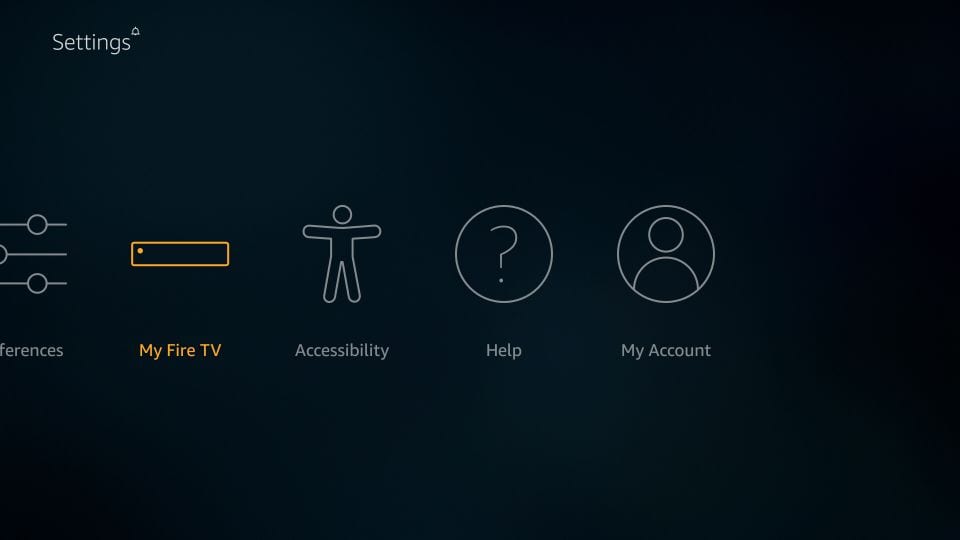
- Press on the My Fire TV or Device option.
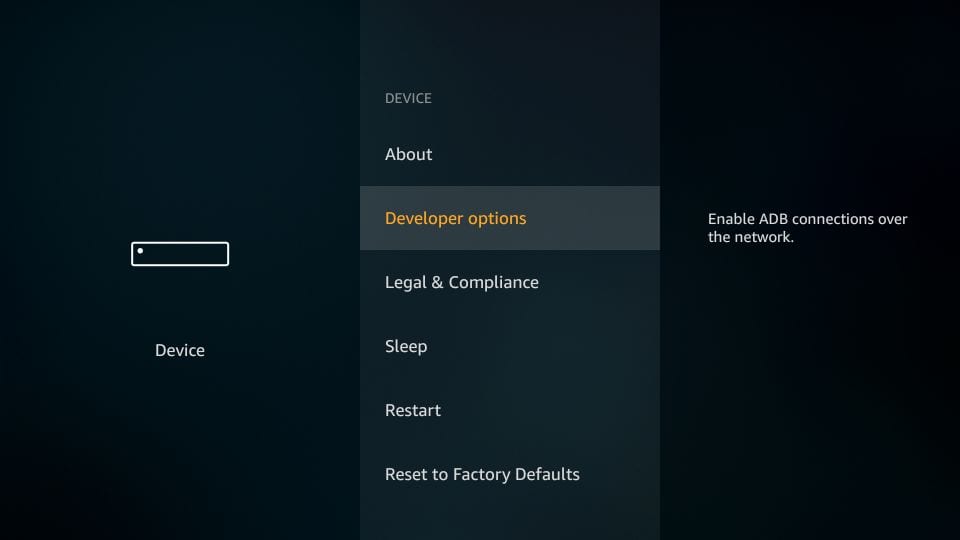
- Press on the Developer Options in Device.
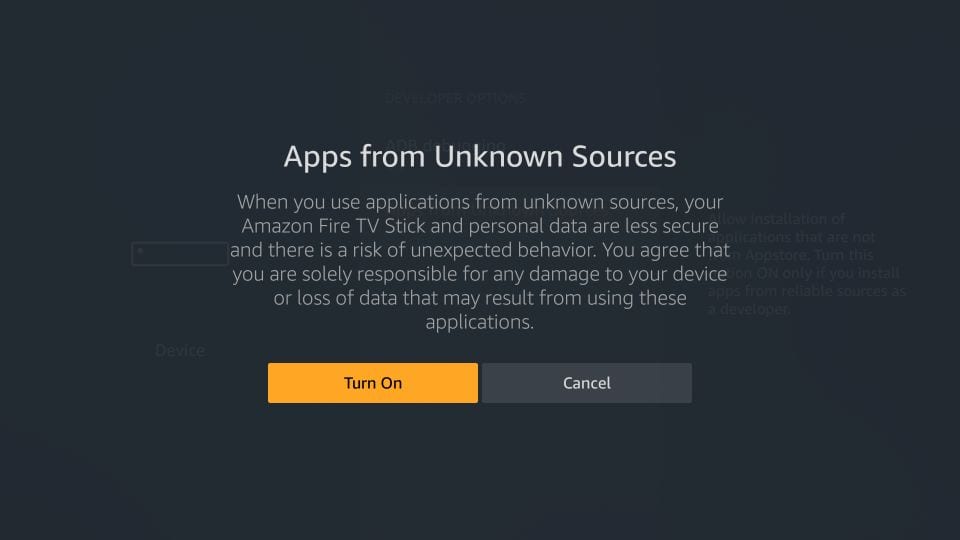
- Press on the Apps from Unknown Sources option.
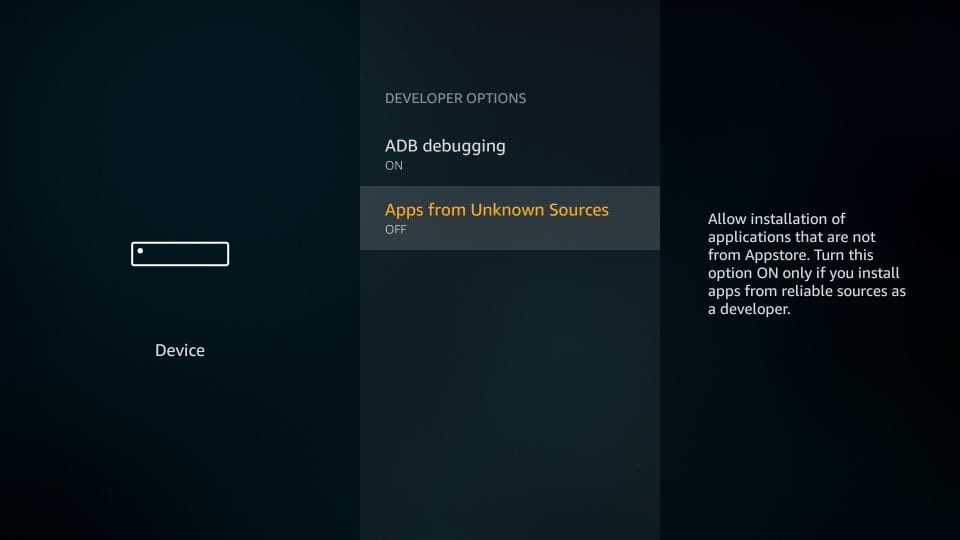
- Press on the Turn On button.
- Return to the Home Screen and press on the search icon.
- Write “Downloader” in the search box.
- Press on the Downloader app and install it.
- Press on the Open button.
- After that, a new page will open the press on the Allow button.
- Press on the OK button.
- After that, visit Settings in the Downloader app from left.
- Press on the box front of Enable JavaScript.
- Press on the Browser or Home.
- After that, press on the URL bar.
- After that, enter the URL (https://.............................) and click on the Go button to download ...... APK.
- Now, wait for a few seconds to download the APK file.
- Press on the Next button.
- Press on the Install button.
- After that, the app is installing so wait for a few seconds.
- Press on the Done button.
- Press on the Delete button.
- Press again on the Delete button.
- Now, the app is installed so we need to go to the home and press on the Apps section.
- After that, you can see the the app at the bottom.
- After that, select app and long press on the menu button on your remote after that new option with popup select Move to Front.
- After that, click on the app icon to launch.